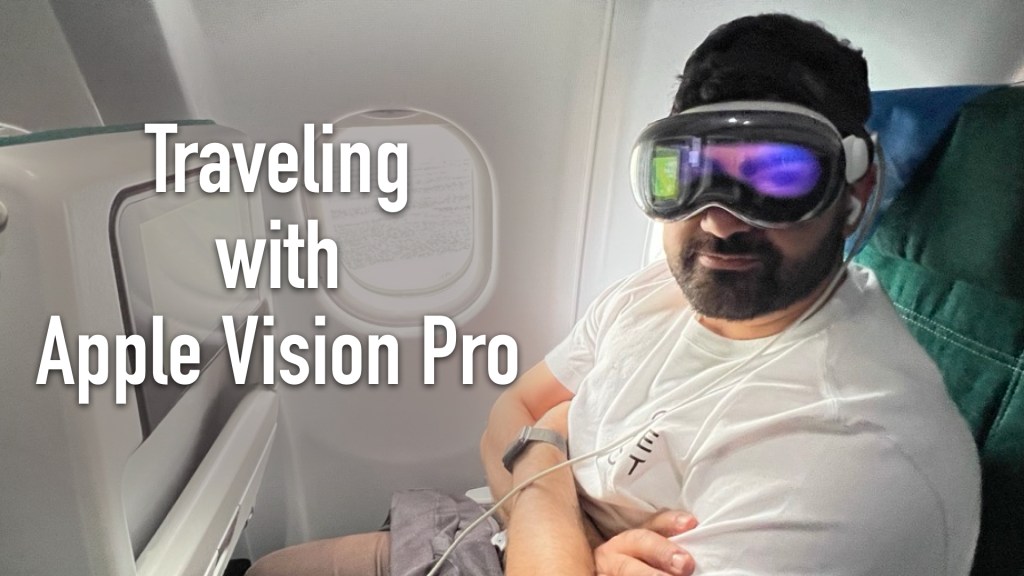
The Vision Pro has quickly become an essential item that I take onto every flight.
It’s a fantastic device to travel with—Be it by train or by plane, it offers an unparalleled opportunity to selectively tune out your environment and sink into an engaging activity like watching a movie or just working on your laptop.
In this blog post, I’ll outline what I’ve learned about the Vision Pro while traveling, explain some of the functionality, shine light onto its drawbacks, as well as assess how it fares against solutions like a phone or a laptop.
For context, most of the traveling where I’ve brought my Vision Pro along has been on airplanes, but this applies to traveling by train as well.
Table of Contents
Expand
Packing / Travel Setup
First and foremost, space in my suitcase or backpack while traveling is the most valuable commodity. Whenever I’m packing for a trip, anything that adds unnecessary bulk to my setup is immediately discarded.
For that reason, I highly recommend that you do NOT purchase the behemoth of the $200 Vision Pro “travel case” from Apple. It’s unnecessarily massive and doesn’t fit into ANYTHING. Avoid it at all costs unless you absolutely need a crazy amount of protection from the elements (but at that point, might as well buy a Pelican case!).
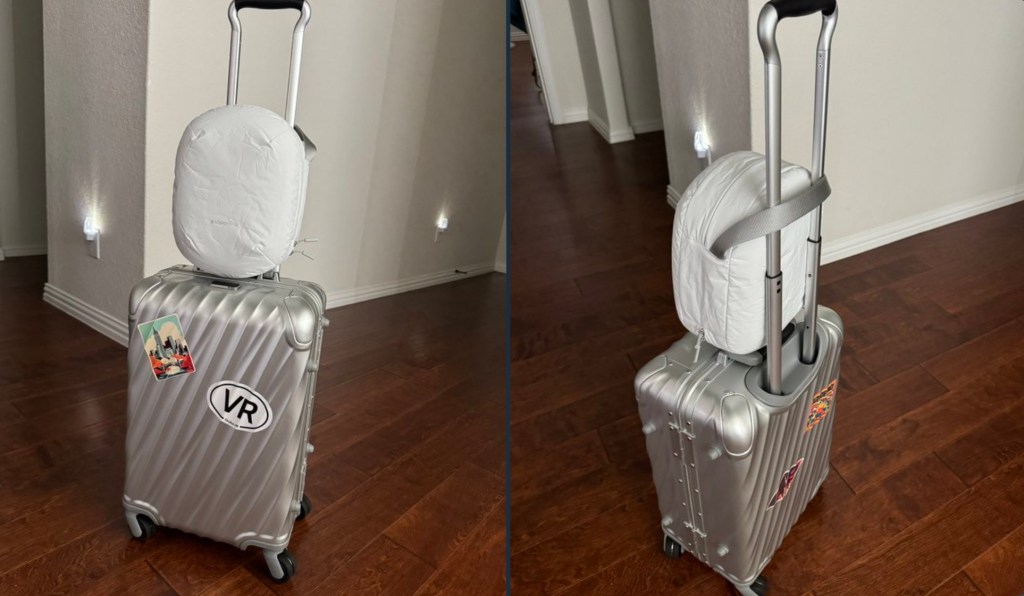
My travel setup is super simple and minimal.
To protect the front glass, I use the “Vision Pro Cover” that comes by default with the headset and on the inside, I use this affordable, generic VR lens protector cover to prevent anything from scratching the lenses. I then throw it into my backpack, face-first, sitting above the other items.
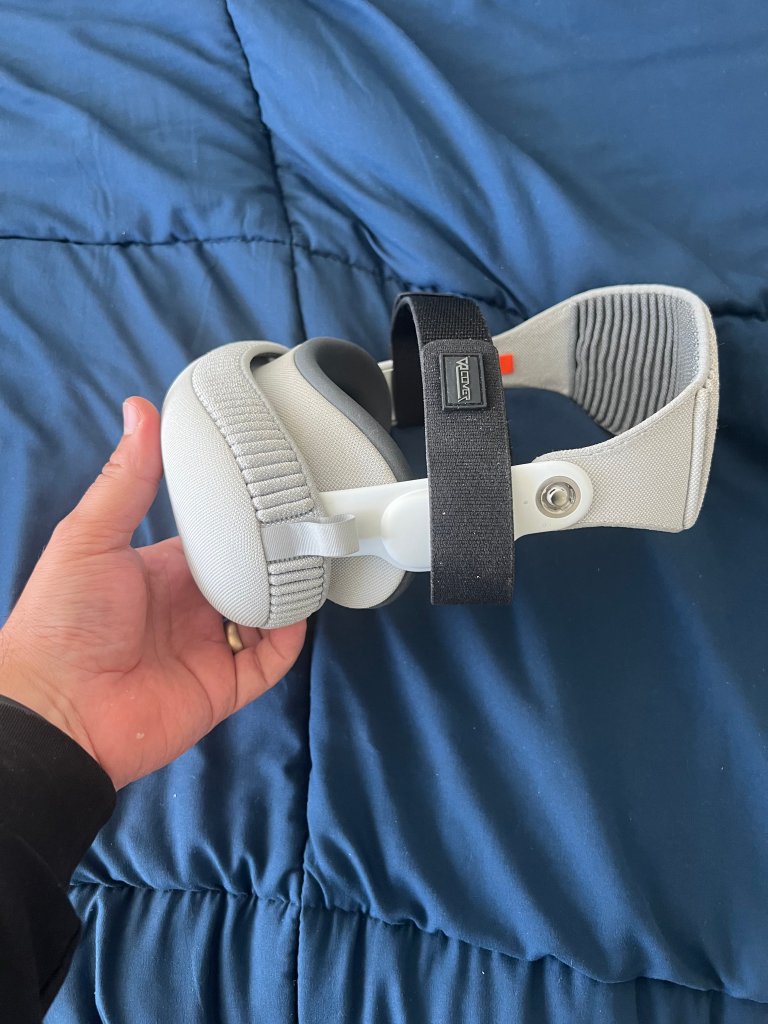
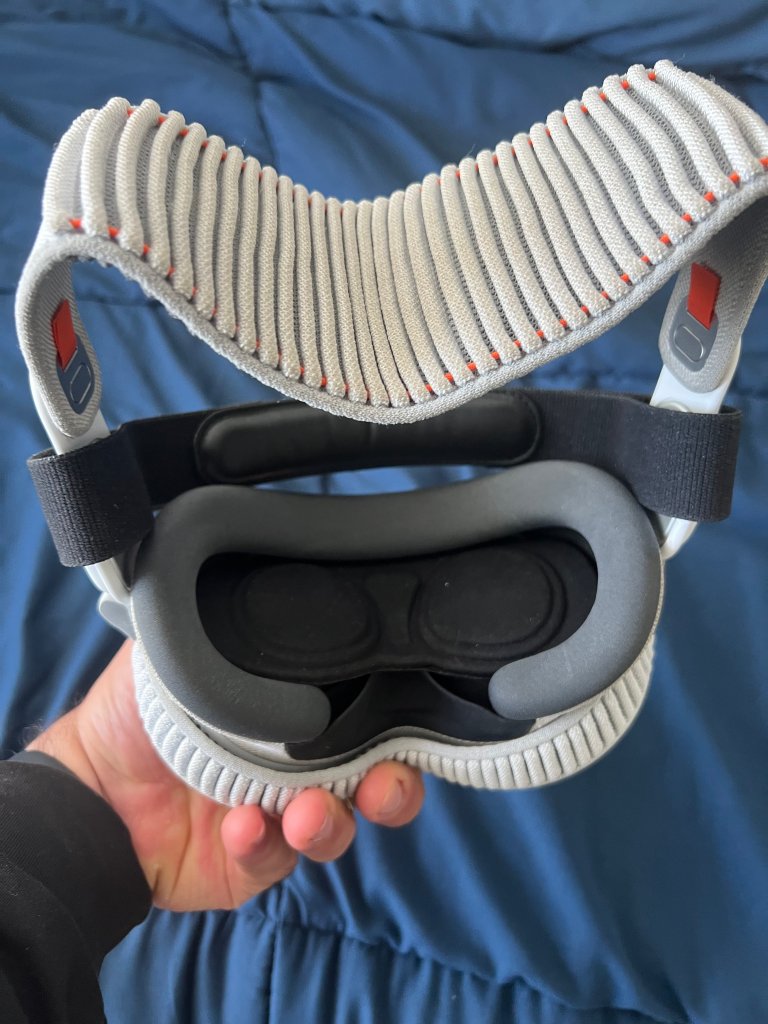
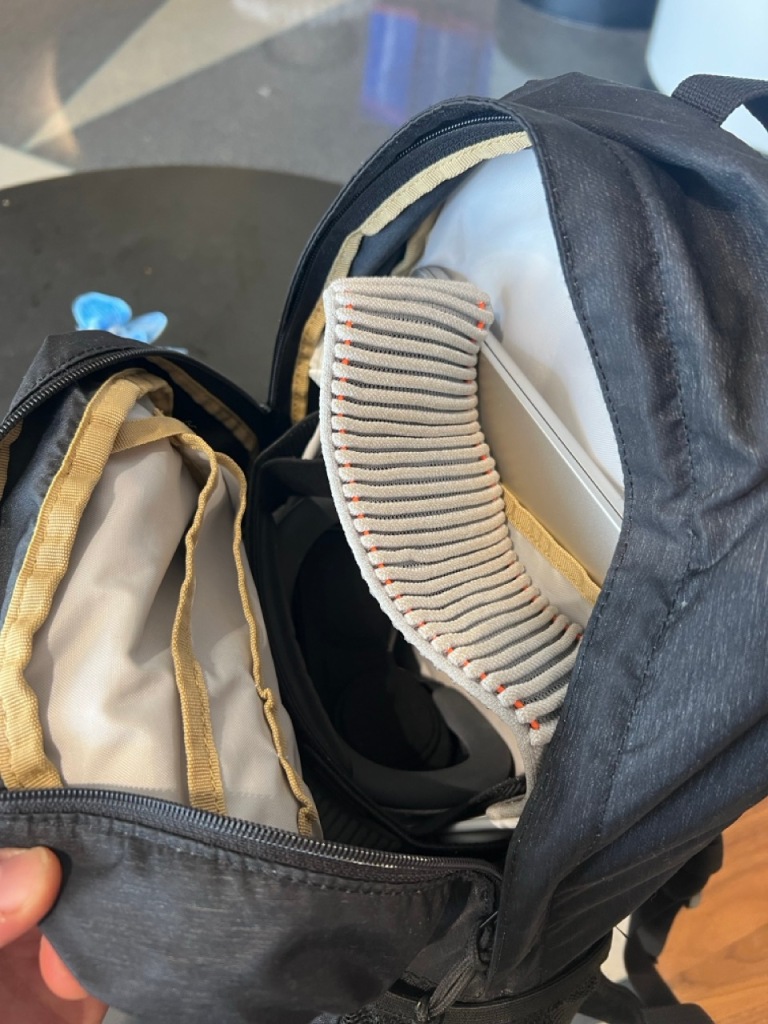
I even use the space between the Solo strap and the headset itself as a place to put my rolled up puffer jacket or quarter-zip. This way, the only amount of space that it actually takes up is the thickness of the headset itself!
As for the battery pack, after charging it to 100%, I disconnect the battery, roll up the cord (while being aware of not adding extra stress to the connector) and throw into my backpack (either into a pocket or have it sit on the bottom).
With this setup, I haven’t scratched or damaged the headset itself at all over the 5-10 flights that I’ve taken it on. Works quite well!
User Experience
Airport Security Line
At the airport security line, I typically pull out my laptop and the Vision Pro from my backpack. Thankfully, it seems like the Vision Pro doesn’t look suspicious at all while being x-rayed as I haven’t been questioned about it yet.
Travel Mode
The Vision Pro’s 6DoF tracking system is built on a combination of IMU’s + SLAM cameras (same as any other VR headsets). Unlike other VR headsets, however, it has a native “Travel Mode” which accounts for the fact that using a 6DoF VR headset in a moving vehicle will lead to massive drift and tracking issues.
The Vision Pro’s Travel Mode was specifically designed to account for these tracking issues (essentially relying entirely on the SLAM cameras and ignoring the IMU data).
As I put on the headset, if the plane is a bit unstable, the Vision Pro detects that I’m on a plane and will suggest to turn on Travel Mode with an actionable notification, which is great because it eliminates any need to prepare the headset prior to boarding/take-off! This was a very deliberate design choice by Apple and is a very welcome one.
I should mention that since the IMU data is ignored, the way the horizon is determined in Travel Mode tracking is purely by the orientation/rotation of your head. If your head is titled, so will all your virtual apps/windows. To fix this, you can cover your vision pro with your hands (to lock the cameras) and when you re-initialize, recenter your apps so that they adhere to the newly-determined horizon.
This might seem like a minor detail, but I find it immensely annoying if my windows are not parallel to the airplane’s ground plane.
Battery Life & Charging
The 2.5-3 hr battery life of Apple Vision Pro is… fine.
It’s enough to watch a 90-120 minute movie and mayyybe an episode of a TV show. For short flights, this is perfectly adequate but for longer, transatlantic/transpacific flights, it’s obviously very much limited.
The best option to extend its battery life is if your plane seat has a 120/240V power outlet. Given that you have a minimum 30W charging adapter, you’ll be able to keep your Vision Pro charged indefinitely.
The next best option is having a high power output battery bank. I use a single 12k mAh Anker battery bank (which can output up to 60W), so recharging the Vision Pro does eat up the entirety of the battery bank’s capacity. This is something to keep in mind if you need to keep your phone charged as well.
I should mention that I prioritize keeping my phone charged over my Vision Pro. A 12k mAh battery bank will recharge my phone 3-4 times while providing me the ability to watch multiple times more movies/TV shows, listen to podcasts, etc. If I have a long flight and I’m not sure that my seat will have a proper power outlet, I don’t rely on my Vision Pro to be my only form of entertainment for the entirety of the flight.
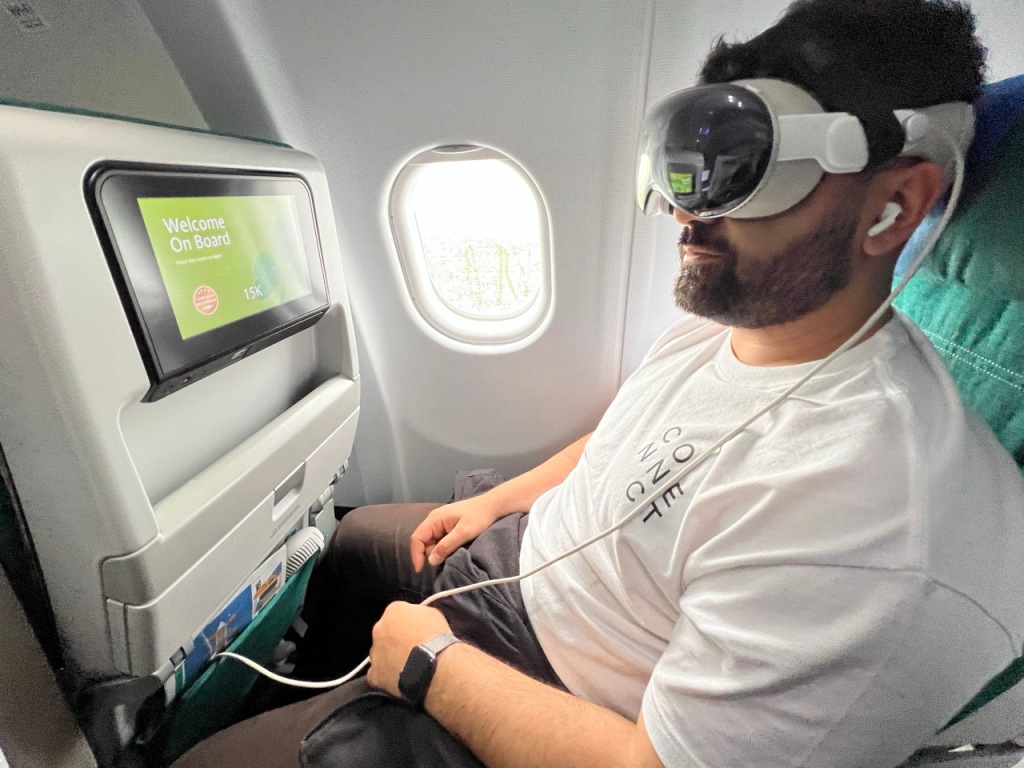
By the way, I typically place the battery pack in the pouch by my knees. The cable is the perfect length for it to reach my head without it feeling too long or too short. Nice!
Physical Comfort
Now, if you’re like me and find the Vision Pro’s ergonomics and weight distribution to be utterly shit, I will highly recommend that you try to find a comfortable setup before you embark on your journey.
Having gone through quite a few head strap setups, I now use the VR Cover Universal Headset Support Strap exclusively. It offers quite a lot of comfort without adding any bulk to the portability of the headset. It helps by removing pressure off your cheeks and distributing the weight onto the front area of the top of your head (similar to a typical VR headset halo strap). It’s not perfect but I find it to be “good enough” for now.
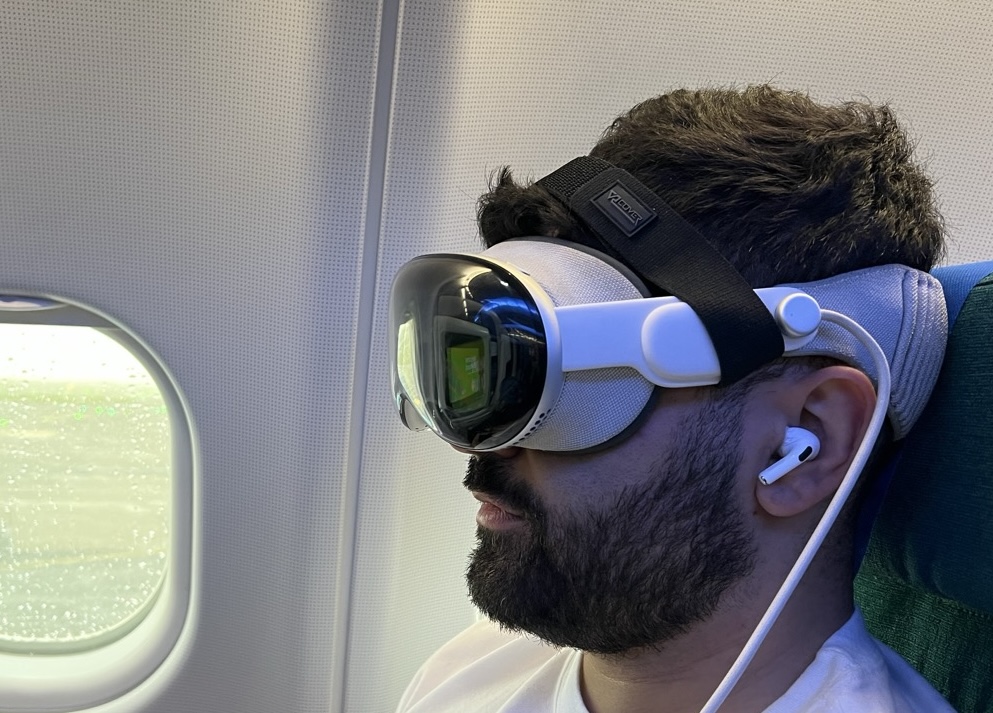
While they’re might be better head strap solutions, the bulk that they add to the travel setup is a dealbreaker for me.
Social Comfort
Another aspect of comfort is… social comfort. When I’m wearing a VR headset around people, I don’t know whether they’re looking at me, or where they are, what they’re doing, etc. Here, the combination of Passthrough + EyeSight offers a great way of remaining aware of your surroundings.
Passthrough
Thankfully, it seems like one of the few places where it’s currently socially acceptable to wear a Vision Pro is on a plane. Of the 5-10 times that I’ve worn it on planes, I haven’t had the feeling of people staring at me suspiciously, whispering about me (at least to my knowledge), or asking me about what I’m doing. I do typically feel self-conscious about using VR in public (so I almost never do it), so the fact that I feel almost entirely comfortable wearing it on a plane says something. Everyone does something to pass the time on a plane, so people are much more forgiving seeing a nerd wearing a face-computer.
Passthrough + EyeSight, as pitched by Apple in their initial announcement of Apple Vision Pro does work quite well when it comes to staying aware of your surroundings and interacting with others (especially flight attendants for those delicious snacks).
While I’m not entirely sure if EyeSight is active when I’m speaking with the flight attendants, the fact that I see them approaching my aisle, that I turn to look and engage with them, and that they see that I am hearing and seeing them (somehow, despite the fact that both my eyes and ears and covered), means that they treat me as any other passenger.
I’m serious that I haven’t had any real issues interacting with flight attendants while wearing my Vision Pro.
One caveat is that, out of respect, if the conversation is more than the “what would you like? Tea please” deal, I do remove the headset to make direct eye contact with them. I feel that it would be sort of odd to have a full-on conversation with someone if they’re wearing a headset (like bro, just take it off and let’s talk like humans).
UI Interaction
One underrated aspect of VisionOS’s interaction system is that it requires very minimal “hand wavy-ness” to interact with the system. This is a stark difference when compared Quest’s OS (or as it’s now called Meta Horizon OS) which requires you to either use a controller or your hand to point and aim at a screen.
The fact that you just look at the buttons that you’d like to interact with and pinch your fingers while your hand is resting on your lap is a massive plus for not looking like a dweeb.
I mention this because I have used a Quest on a plane (briefly, to capture marketing footage of Puzzling Places in Passthrough). I really felt self conscious about trying to minimize the amount of arm movements I had to do to navigate the OS, menus, etc. I held my elbow tight against my body and tried to only rotate my wrist around, which was quite uncomfortable.
So once again, the eye+pinch UI interaction system is a wonder when it comes to minimizing the amount of physical movement required to navigate the OS, remaining cool and discrete while wearing a face computer (right? right??).
Virtual Environment / Depth Collision Mitigation
One of the biggest issues of Passthrough Mixed Reality is the fact that depending on where you are, you might have a chair or a wall in front of you that presents a “collision” with a virtual screen in your Vision Pro.
In the case of flying on a plane, the chair in front of you is quite close, so if you’d like to set your virtual movie screen to be large and 10 ft away, the chair and the movie screen create a “depth collision”, which can be quite uncomfortable.
Of course, one way to mitigate this is to immerse yourself into a fully virtual world, but that comes at the expense of spatial awareness.
The wonderful thing about visionOS is that you can use a “partial” virtual environment, carefully dialing in just how much of a virtual environment you’d like to use.
In this case, it’s a perfect fix for opening a portal or a window to a serene landscape to place your large movie screen in, while still being able to see the plane around you.
It works great and is one of the best features of visionOS for using VR in public.
AirPods Pros + Vision Pro
A match made in heaven.
The AirPod Pros are a fantastic set of earphones to wear with the Vision Pro on a plane, offering top-of-the-line active noise cancellation (ANC) but also, “adaptive” and “transparency” modes which allow you to selectively hear voices/sounds around you, depending on the situation.
I use the AirPods Pro 2 with USB-C, which are special in that they offer uncompressed audio with low latency specifically for the Vision Pro. While they do work quite well, according to audiophile reviews, the difference in audio quality between the regular AirPods Pro 2s and the USB-C version with uncompressed audio is minimal, so keep that in mind if you already own an older pair.
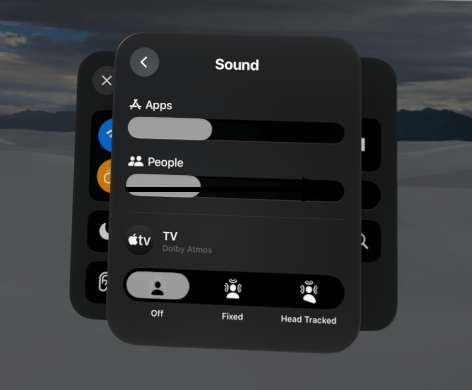
The AirPod Pro 2s also feature “Spatial Audio” which output the surround sound mix of movies in a spatial format. By default, the sound is contextually spatialized and head-tracked, meaning, the Vision Pro tries to simulate the room acoustics of the space that you’re in. Typically, this works well enough in a room, but on a dark plane, I find that the spatial acoustics are a bit too different from the raw audio output of the movie itself.
Thankfully, you can change this by disabling the Spatial Audio output from Control Center while watching a movie, where you get the raw sound mix of the movie piped to your AirPods with surround sound still (meaning, sound cues that are behind you will still sound like they’re behind you). The fact that both virtual surround sound and contextual spatialization are called Spatial Audio is definitely a bit confusing.
Either way, if you have a Vision Pro, get the AirPod Pro 2s!! You will absolutely not regret it.
Eating/Snacking
Speaking of flight attendants, when you’re ready to have your in-flight meal, I find that the Vision Pro’s Travel mode tracking perform at its worst, particularly in dark cabin environments (much less so when it’s bright).
The problem is that for meals that require eyesight to coordinate (aka using a fork to pick up food from a plate), as soon as you look down at your food, the tracking often gets lost. This causes the movie to stop playing and for you to have to look forward for the tracking to re-initialize.
Additionally, the Vision Pro’s field of view is more horizontal than vertical (unlike most other VR headsets) which can make eating challenging, requiring me to fully tilt my head down to look at my food.
In most cases, unless I have a sandwich in my hand that I can eat without looking at, I take my headset off to eat my meal, then return to my movie.
Works in Complete Darkness
One of the drawbacks of VR systems that use cameras for 6DoF tracking is the need to have the room lights on for the headset to function!
Thankfully, Apple Vision Pro does work in pitch dark environments (albeit with some caveats).
While the 6DoF tracking gets reduced to 3DoF, the OS and all of the UI interactions still function in 6DoF. The hand and finger tracking continue to work in 6DoF (a bit more slowly, as the depth sensor being used to track your hands likely has a slower refresh rate than the cameras), so you can still use the full OS and grab windows to move them closer/further away.
The 3DoF movement limitation isn’t an issue for watching movies and using the Mac Virtual Display.
This is a very unique feature to the Vision Pro. No other all-in-one headset can natively function in the dark to this extent.
Watching Movies
Once Vision Pros start to become more affordable, I foresee regular travelers buying Vision Pros just to have an amazing in-flight entertainment system. It’s truly that amazing.
Here are some of the things I’ve learned while watching movies on planes.
Apps
The way you’ll want to watch movies and shows is through native VisionOS apps (Apple TV, Disney+, Max) as they will play videos in their native aspect ratios, offer the highest quality visuals and audio, and have a much easier UI built for AVP.
Apple TV is my preferred app to watch movies with. In my opinion, it provides the highest quality video and audio playback, the ability to buy or rent movies without needing to subscribe, and overall, has the simplest and cleanest UI.
Note: Recently, Apple combined the iTunes Movie Store with the Apple TV streaming service into just “Apple TV”.
As for Prime Video and other video streaming apps which don’t have visionOS apps, you can use their iPad apps. The aspect ratio of the app window, will be the same as an iPad, however, so movies will play in a letterboxed mode with black bars above and below.
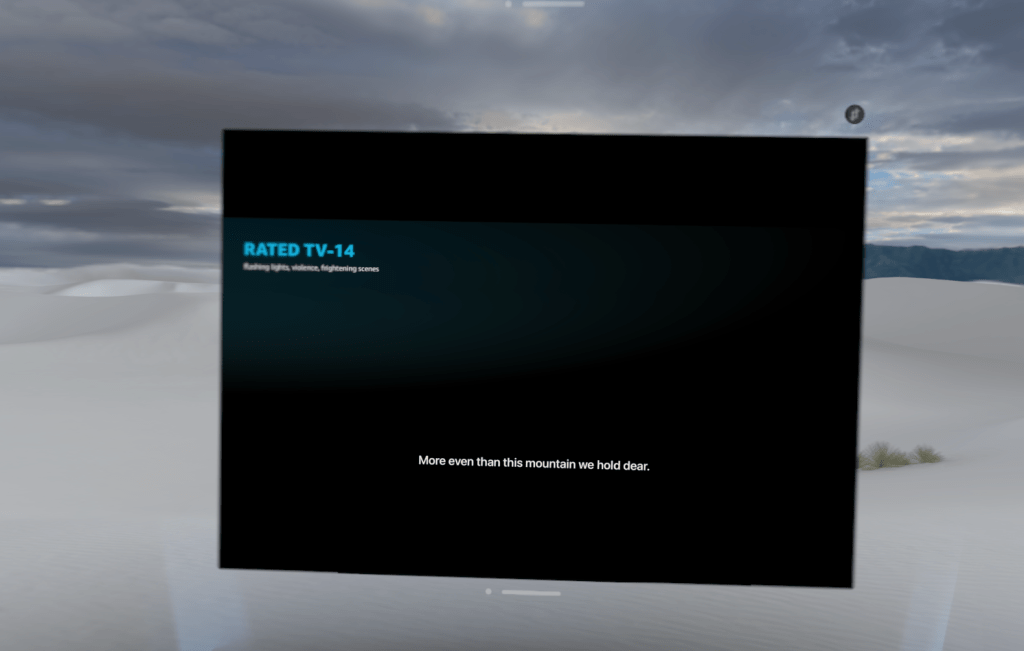
It’s obviously not ideal, but hey, at least I was able to watch Rings of Power comfortably on the plane, on a large screen!
Visuals
The movies that play in virtual screens are native to the films’ aspect ratios, which can vary movie to movie, eliminating the black bars of “letterboxing” and “pillarboxing” you typically have on iPads, iPhones, or MacBooks.
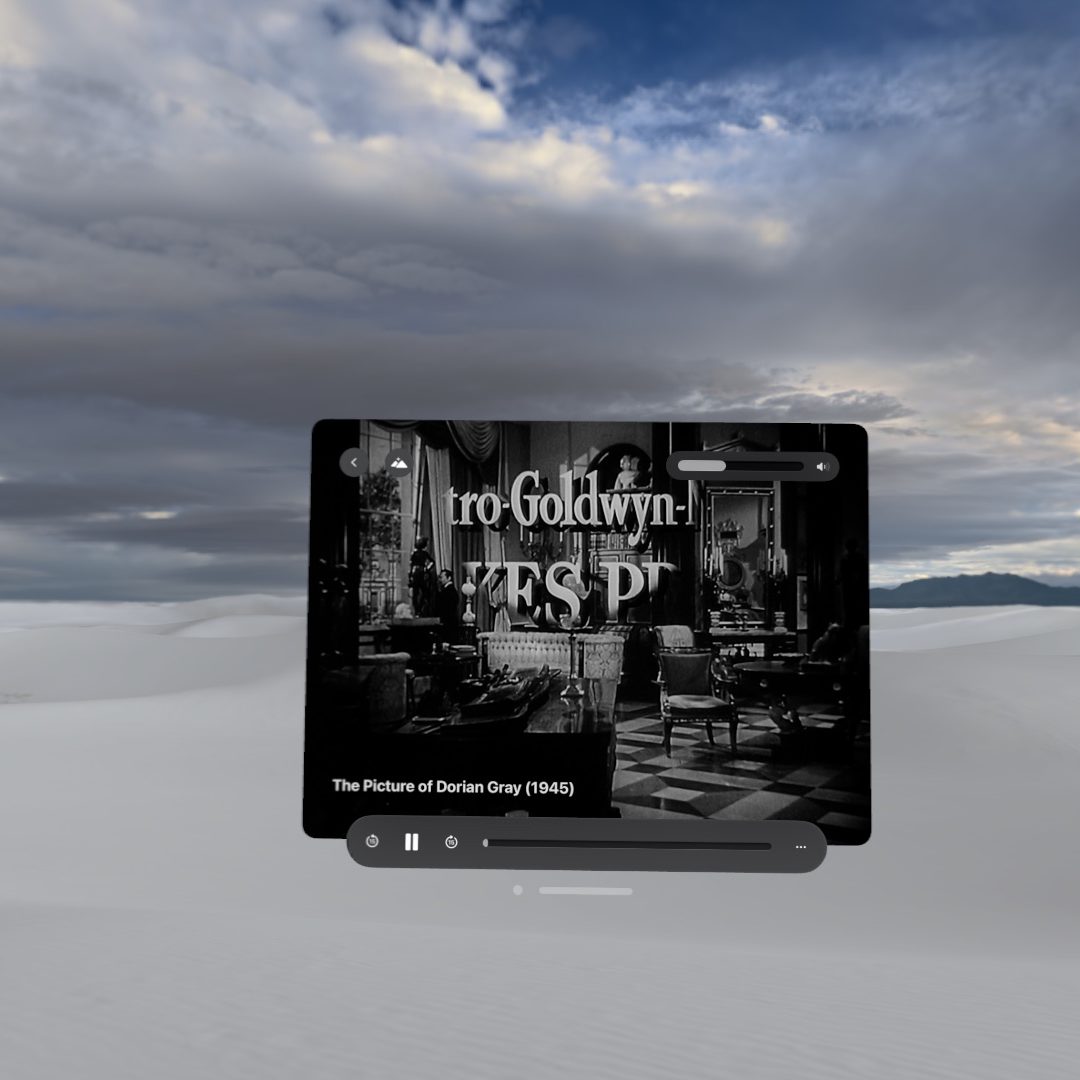
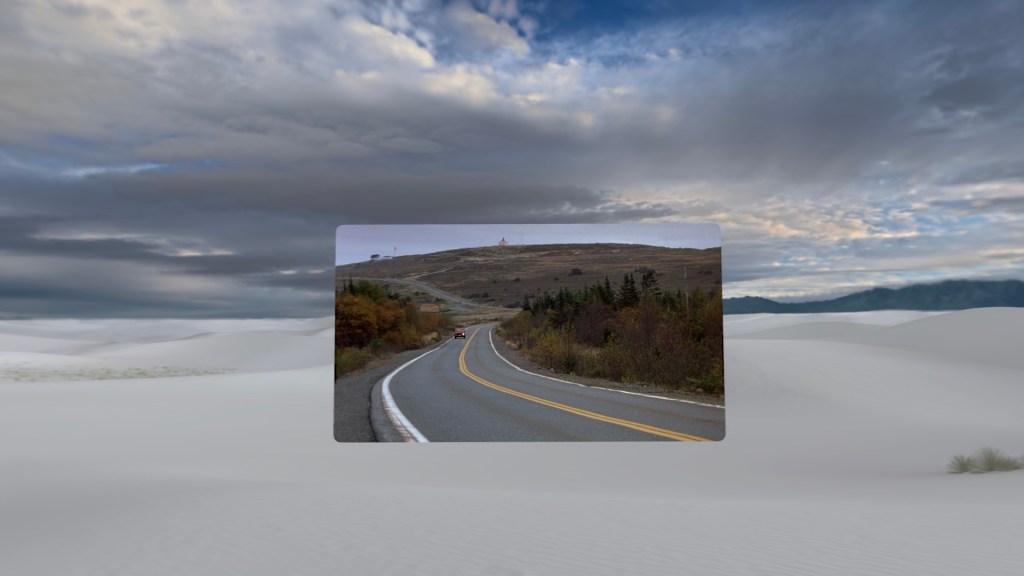
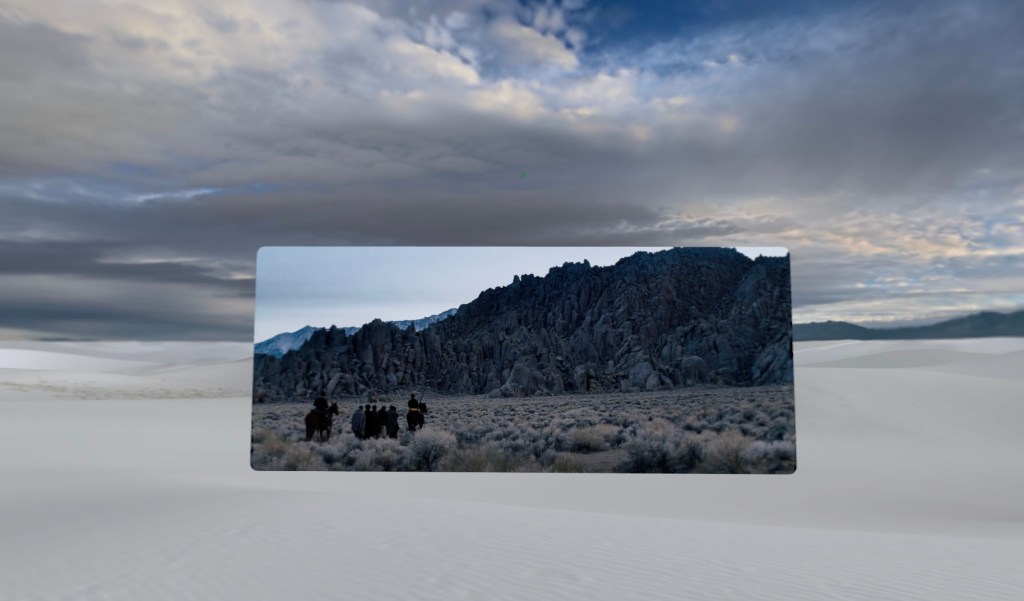
They make great use of the high-res displays of the Vision Pro, its wide color gamut, and its bright HDR capabilities. In fact, of all the screens and displays in my house, my Vision Pro is hands down the highest quality display that I own, so I very much look forward to watching visually compelling movies in it.
One small detail worth mentioning is that the Vision Pro bumps up the frame rate from 90 to 96 fps to provide a smooth playback for 24 fps movies (4:4 pulldown). I really appreciate that level of detail that Apple has put into providing a quality movie-watching experience.
As all VR headset optics go, Apple Vision Pro’s optics are not perfect in the sense that they’re free of glare. Compared to older Fresnel lenses, Vision Pro’s unique concave pancake lenses are some of the best I’ve seen at mitigating god-rays/lens flaring/smearing from high contrast elements.
My advice here is to not use a pitch black environment like the “Moon” or the “Cinema” but rather, use the Dark version of “White Sands”.
Cinema Environment
As mentioned in the Virtual Environment section, Apple has created 8 virtual environments, each with “Light” and “Dark” variants.
What’s special is that every environment even has a unique “Cinema” mode where the video playback window gets pushed back and expanded to become 100ft or so, maximizing the field of view of the headset and give the film the “center stage”.
As of VisionOS2, all video apps can take advantage of the Cinema environments that Apple has provided for each virtual environment. Using them gives you a truly massive, immersive (meaning, no multi-tasking) screen to watch your movies on. The environment is also reactive to the lighting of the video, much like the emission of a projector screen.
While some of the environments like Mount Hood have impressive reflective water features underneath the cinematic video playback window, I find them to be a bit too distracting for my taste.
I always go back to the White Sands environment using either the light or dark environment, depending on my mood or time of day.
I should mention that I don’t always use the immersive cinematic environments. Although as of VisionOS2, you can recenter to adjust the tilt of the cinematic window, I find that it still doesn’t provides as much granular control as I’d like over where I would like to place my movie window. I find myself just making the normal window bigger, pushing it back, and placing it wherever would be most comfortable for me to look at.
Benefits of Privacy
A big bonus for watching movies in VR on a plane is the fact that you don’t need to conscious about movies that contain graphic scenes. You don’t need to turn down the brightness and rotate the screen away from children!
And speaking of brightness, if you’re on a long red-eye flight with the cabin lights off (with your seat neighbor asleep), you don’t need to worry about the brightness of your movie bothering them.
Special film formats
Apple TV also contains the largest catalogue of 3D movies (some that are event entirely exclusive to the service, never released on Blu-Ray). I have an in-depth post about the Vision Pro is a revolution for home video formats by offering stereo 3D movies in 4k + HDR, high frame rate, as well as providing a platform for IMAX to offer films in their native 1.43:1 aspect ratio.
Audio
Using AirPods Pro 2s with active noice canceling is the best way to watch movies with Vision Pro.
In terms of “Spatial Audio”, I’m still a torn on whether I should use the “contextual spatialization” of the surround sound mix of the movie (which is on by default) as it does change the output quite a bit. I find that it’s quite inaccurate when you’re watching the movie in pitch darkness, as the room scanning that the contextual spatialization is based on isn’t mapping the shape of the plane cabin accurately.
Thankfully, you can turn off Spatial Audio and have the native surround mix piped to your AirPods. I believe this output mode still simulates surround sound too!
Caveat: when videos doesn’t play
Similar to iOS streaming apps, I have encountered issues with downloaded purchased and rented shows and movies not being able to play without a network connection. This is truly a “godfuckingdamnit” situation especially when that movie might’ve been the only form of entertainment that I brought onboard.
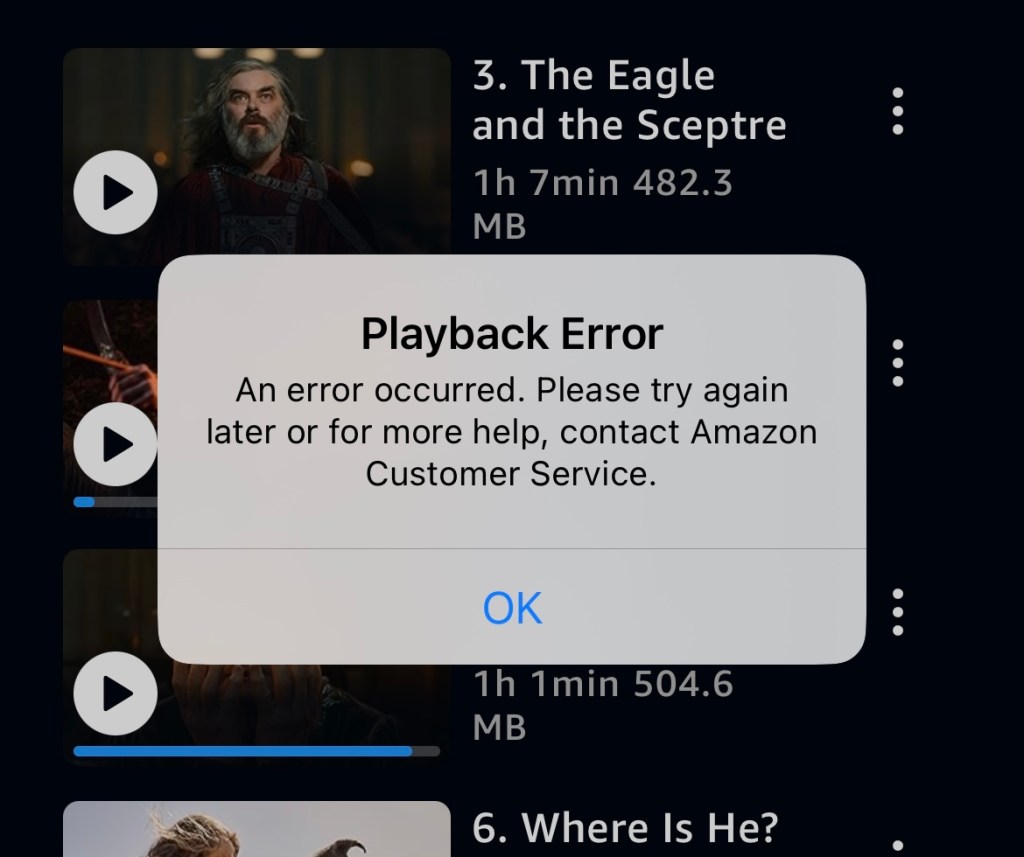
The only time encountered the error with a purchased item was when I had downloaded a movie months ago (likely a few OS updates ago) and I wanted to watch it on a plane.
Rentals can be tricky, especially because you need to keep track of when they were rented and when you’re trigger the start of its playback. Typically, they have worked fine for me, but I do worry a bit every time I board the plane on whether a rental will play or not (at least on planes without Wifi).
Mac Virtual Display
The other major use case of Apple Vision Pro on plane is… to work! I don’t mean working with the silly little iPad apps but rather, connect it to your MacBook and turn its tiny little screen into a battle-station.
Mac Virtual Display is a native way for your Mac to stream its screen to the Vision Pro wirelessly without needing a Wifi or network connection. This is noteworthy as most virtual desktop software for VR headsets require either a cabled connection or a local network. With Mac Virtual Display, the Mac and Vision Pro connect to each directly (via Apple magic, likely using Wifi Direct).
Here are a few things worth mentioning about using my Vision Pro as a virtual monitor for my MacBook.
No More Laptop Screen Tilt Limitations
if you’ve tried to work on a plane with a laptop, you know just how restricting the angle of the plane seat in front of you can be. Even 13 inch laptops feel “large” when you can barely tilt the screen enough to actually do some work. It’s doubly worse if the seat in front reclines all the way, making it entirely unusable.
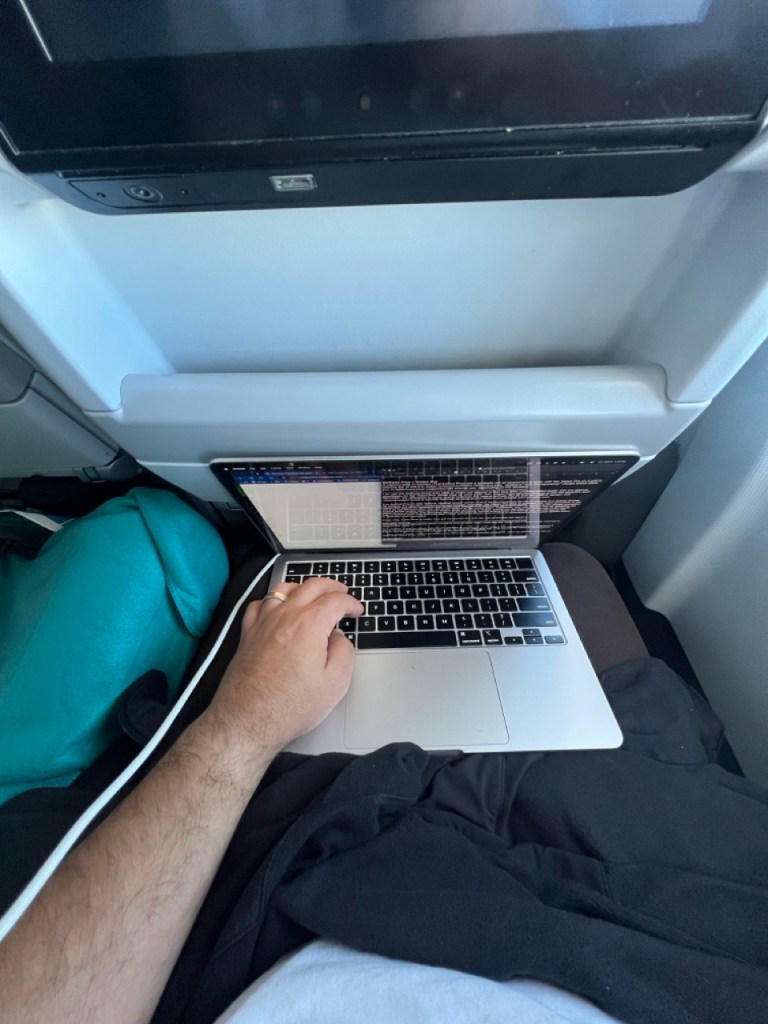
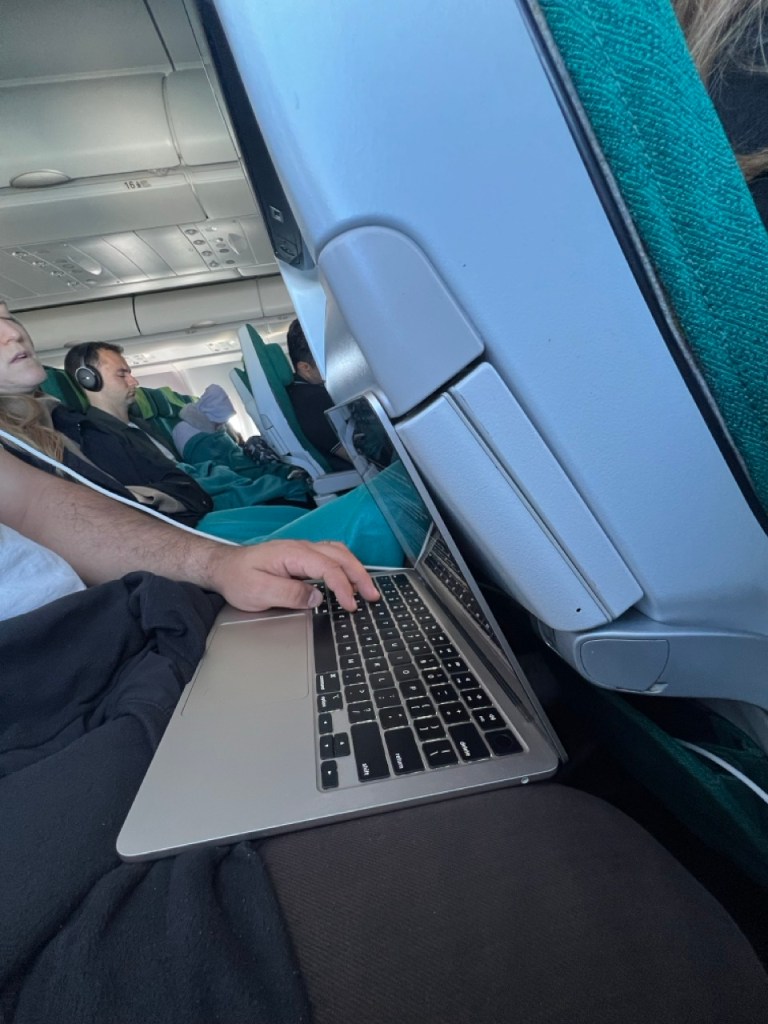
Here, it doesn’t matter what my front seat neighbor does, I can just tilt my screen down, place the laptop on my lap or tray, pull up a virtual monitor, and get to work.
Higher Resolution + More Real Estate
A very underrated aspect of Mac Virtual Display is that the virtual display isn’t merely a mirror of your laptop screen but an entirely new “display” with its own specifications and attributes.
In my case, using a M2 13 inch MacBook Air, Mac Virtual Display actually increases the resolution of my laptop going from the 1710 x 1112 to 2560 x 1440 giving me way more screen real estate to work with!
Here’s what I mean: On the left is what my desktop looks like when I’m writing this blog post on my MacBook by default (I’m even using the highest resolution available). On the right is what my desktop looks like with Mac Virtual Display. Notice how much more real estate there is around my browser window.
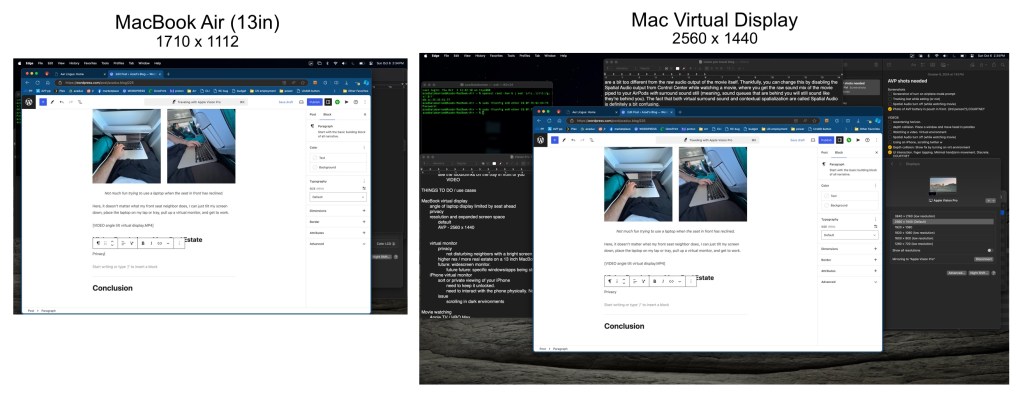
With VisionOS2, I’m anxiously waiting for the ultra-wide virtual displays (and higher resolutions) to become available which will only make the experience of using a small laptop to do “big work” more viable.
I do hope that in the future individual apps and windows from a Mac can be streamed into the Vision Pro, allowing each app to take whatever shape and size that it would best benefit from (rather than streaming the full desktop).
Privacy
I often see frequent flyers who do sensitive work on planes use privacy filters on their laptop screens to block out others from seeing their work. With it, also comes the cost of screen clarity, text sharpness, color accuracy, and narrow viewing angles (obviously) which hinder the fantastic qualities of MacBook displays.
When using Mac Virtual Display, your MacBook screen is blacked out, allowing only you to be able to see you virtual screen. It’s quite handy for sensitive work!
iPhone Mirroring
This one’s a little bonus: Apple recently announced that you can stream (screen mirror) your iPhone to Mac and Vision Pro, giving you a smooth, high quality virtual display of your phone.
Unlike on MacOS, however, iPhone screen mirroring isn’t intractable, so you’ll still have to hold the phone in your hand and scroll/type. It also has issues with video playback, so if you’re planning to watch downloaded shows/movies or even YouTube videos on your phone, you’ll encounter AirPlay issues.
The reason you’d stream your phone while watching a movie in Vision Pro is because trying to use your phone via the Passthrough is less than ideal, especially in low light.
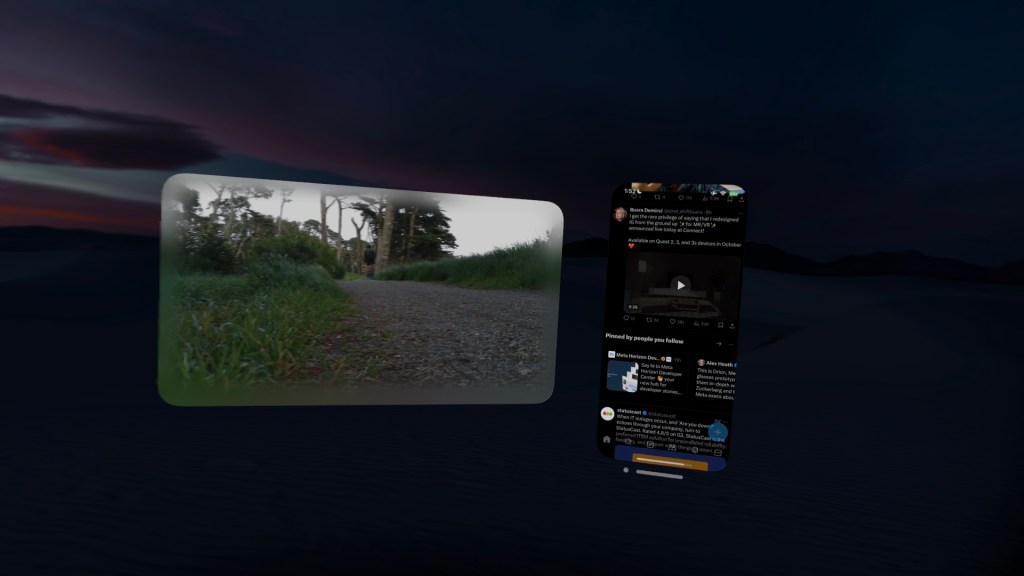
It’s not the most useful feature, but I did enjoy scrolling through Twitter in pitch darkness when my seat-mate was asleep.
Conclusion
I’ll try to summarize my thoughts on Apple Vision Pro as as traveling device.
The first generation Vision Pro is an incredibly vivid showcase of how Apple sees its power users connecting all the devices within their ecosystem to provide a high quality, private, immersive experience, especially in environments that are outside of their typical home/work spaces.
As a travel device, it’s a fantastic platform for watching movies and expanding my MacBook workspace. It has many flaws, which power users (like myself) who are motivated enough to make the most out of their device will find ways of alleviating.
As it stands, as a first generation product that’s heavy, very expensive, and has a very underbaked OS and app ecosystem, I have a tough time recommending anyone to go out and buy one. That being said, I’m taking it on every flight I go on.
But damn, based on how well it all works now, you can just tell by the 4th or 5th generation, Apple Vision Pro will be on the face of every frequent flyer.
 Azad's Blog